
Split
A 20-page PDF where you only need to send page 7. A scanned batch of invoices that should be one file each. Splitting turns one big file into several smaller ones, so each part can go where it belongs.
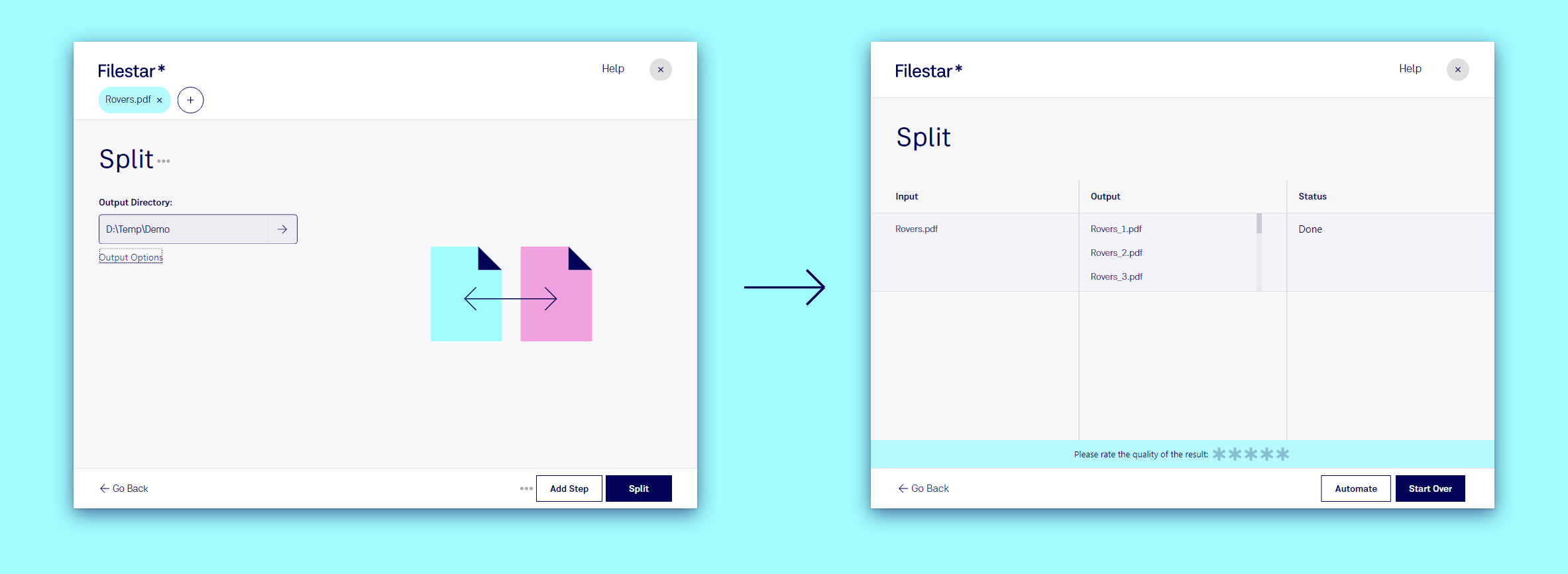
Split a file in three steps
- Drop the file on Filestar.
- Pick Split. For PDFs it is one of the suggestions under the search box; otherwise type
split. - Click Split. Every page becomes its own file:
Rovers.pdfgivesRovers_1.pdftoRovers_20.pdf.
The result page lists every file that was made, and you can open any of them or the folder they are in.
Split images too
Images can be split into a grid of tiles, which is handy for posters printed on several sheets or for Instagram grids: split a JPG into a grid, split a PNG into a grid.
Go further
- Only want some pages? Extract them instead: see Extract.
- Control the file names, for example
Invoice-001.pdf,Invoice-002.pdf, with the<Order>and<Page>tags: Bulk Renaming. - Split every PDF that lands in a folder with a Trigger Folder.
Try it: Split PDF.