
Virtual Printers
Virtual printers are currently only available on Windows.
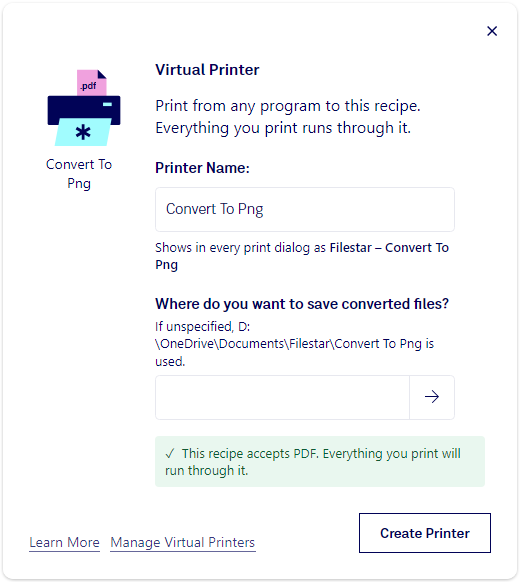
A virtual printer turns a recipe into a printer. Print from Word, your browser, an accounting program or anything else with a Print button, choose the Filestar printer, and the document runs through the recipe: an invoice becomes a spreadsheet, a web page becomes a searchable PDF in your archive, a report goes to your email.
Creating a virtual printer
After you have run a recipe, click ‘Automate’ and choose ‘Virtual Printer’. Give the printer a name and, if the recipe saves files, choose where they go. If you don't choose a folder, the files are saved in Documents\Filestar\ under the printer's name.
Click ‘Create Printer’. Windows asks once for permission to add a printer. The printer then appears as ‘Filestar –
The recipe has to accept PDF
When you print to a virtual printer, Windows sends the document to Filestar as a PDF, with its text kept as text. So the recipe has to be one that works on PDF files. Filestar checks this when you create the printer, and ‘Create Printer’ works only when the check has passed. The check asks whether Filestar has a way from PDF to what the recipe makes; whether a particular document converts well is only known when you print it.
If the check says the recipe doesn't take PDF files, build the recipe from a PDF instead: add a PDF file to Filestar, find the skill you want, and create the printer from there. If Filestar couldn't check (for example when you are offline), click ‘Try again’.
What happens when you print
The files are named after the document you printed, so ‘Invoice 1042’ becomes ‘Invoice 1042.xlsx’. You will see a notification when each one is done, with buttons to open it or show it in its folder. If a document could not be converted, the notification says why, and the printed PDF is kept for a week.
Like trigger folders, virtual printers are run by the small FilestarAgent.exe application, which starts with Windows. If the agent isn't running when you print, the document waits in the Windows print queue and runs when the agent starts.
Only you can print to the virtual printers you create. Other people who use the same computer see them but can't print to them.
Removing a virtual printer
Open the menu, choose ‘Manage’ and then ‘Virtual Printers’, select the printer and click ‘Remove’. You can also get there from ‘Manage Virtual Printers’ in the window where you create one. Uninstalling Filestar removes every virtual printer.
Virtual printers are related to Trigger Folders.