
You have just converted, compressed or merged the files, and they need to go to someone. Instead of opening your mail program, starting a new message and attaching each file, let Filestar send them.
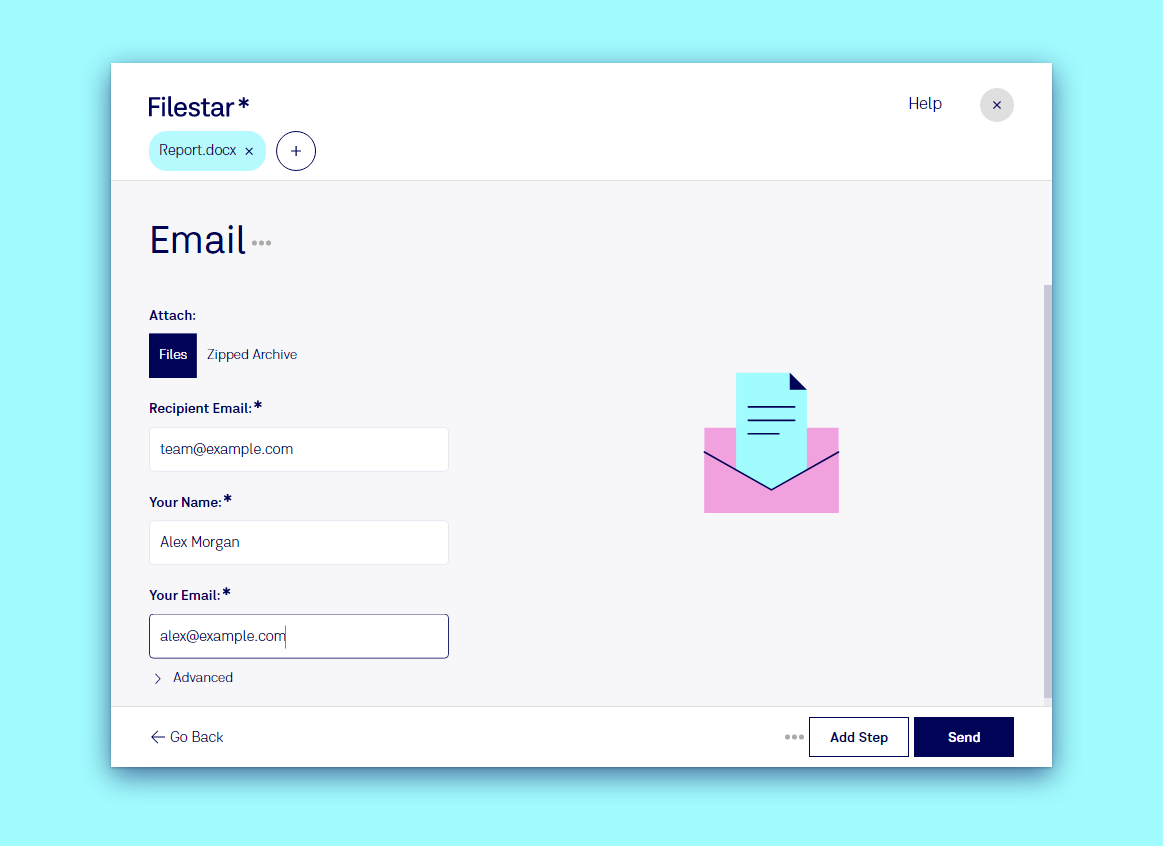
Email files in three steps
- Drop the files on Filestar, or come here straight from another step.
- Type
emailand pick the suggestion. - Fill in who it is for: the Recipient Email, plus Your Name and Your Email so the person knows who sent it. Filestar remembers your own details for next time. Then click Send.
Under Attach you choose how the files travel:
- Files: each file as its own attachment.
- Zipped Archive: everything in one zip file, with the option to protect it with a password.
Attachments can be up to 20 MB in total, the limit of many email providers. Compress large files first: see Compress.
Email as the last step
Email is at its best at the end of a Recipe: convert the scans to PDF, merge them, compress the result, and email it to accounting, all from one drop. Put the recipe on a Trigger Folder and everything saved there is sent on automatically.
Privacy
The email is sent through Filestar's own sending service, and the files are removed from it as soon as the email has gone. More in Email exporter and Privacy and Security.