
Filestar CLI
The Filestar CLI (filestarcli) converts files from a terminal or a script, with the same skills as the Filestar app. It comes with Filestar on Windows, macOS and Linux.
Install
Windows: the Filestar installer puts filestarcli on your PATH. Open a new terminal after installing. You can also install Filestar from a terminal with winget. See Windows.
macOS: the Filestar installer adds filestarcli to /usr/local/bin, on Intel Macs and on Apple silicon. You can also install Filestar with Homebrew. See macOS.
Linux: the Filestar AppImage contains the CLI: run it as ./Filestar.*.AppImage cli followed by the arguments below, in place of filestarcli in the examples. For a server without a desktop there is also a download with only the CLI. See Linux.
Only the CLI, on any of these systems: install it with npm (npm install -g filestar, needs Node.js 18 or later) or as a .NET tool (dotnet tool install -g Filestar, needs the .NET 10 SDK). Both give you the filestarcli command without the Filestar app. See Command line only.
For winget, Homebrew, npm, the .NET tool and the CLI-only download, see Other Ways to Install Filestar.
The CLI needs a plan that includes it.
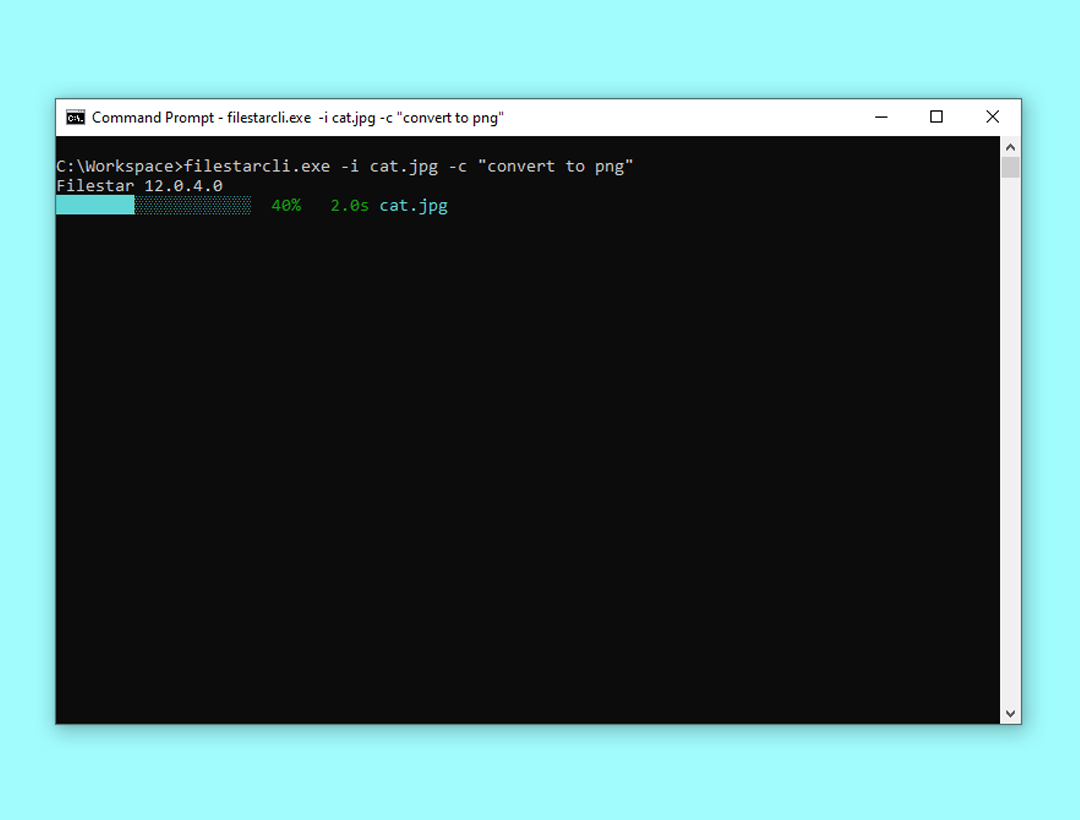
Examples
Convert cat.jpg in the current folder to cat.png and store it in the folder C:\workspace (Windows):
filestarcli -i cat.jpg -c "convert to png" -o C:\workspaceThe same on macOS or Linux, storing it in the folder workspace in your home folder:
filestarcli -i cat.jpg -c "convert to png" -o ~/workspaceMerge page1.pdf and page2.pdf in the current folder:
filestarcli -i page1.pdf page2.pdf -c "merge"Arguments
-i <input>
--input <input>
Specify paths as absolute or relative to current directories. It can contain a combination of valid literal path and wildcard (* and ?) characters, but it doesn't support regular expressions.
-o <output>
--output <output>
-o .
-o foo.gif
-o "c:\foo bar\"
-o c:\foo\bar.<Extension>
Specifies how to handle the output. If omitted each file will be saved in its respective source directory.
-r
--recursive
Recursively find files in sub-directories in the current directory.
-c
--command
Command, i.e. "convert to jpg"
-p
--parameters
Skill parameters.
--output-template <output-template>Specifies how to name the converted files. If omitted, this template is used: <Filename>.<Extension>
--loglevelAvailable options:
- Normal (default)
- Quiet
- Verbose
--recipePath to a stored recipe file.
--cloudSpecify how to handle cloud skills.
Available options:
- Disallowed (default)
- Allowed
- Forced
--output-conflictStrategy to use if there are conflicting filenames when saving files.
Available options:
- AppendNumber (default)
- Replace
- Skip
- Warn
--versionShow version information
-?, -h, --helpShow help and usage information.
Commands
filestarcli register <Activation Code>Register Filestar on the current machine with the specified activation code.
filestarcli updateUpdate Filestar on the current machine to the latest version.