
Convert
The photo came off an iPhone as .heic and the form only takes .jpg. The supplier sent a .docx and the portal wants a PDF. Converting is the thing Filestar does most, across more than 1,400 file types, and it works the same way for all of them: drop the file, say what you want, done.
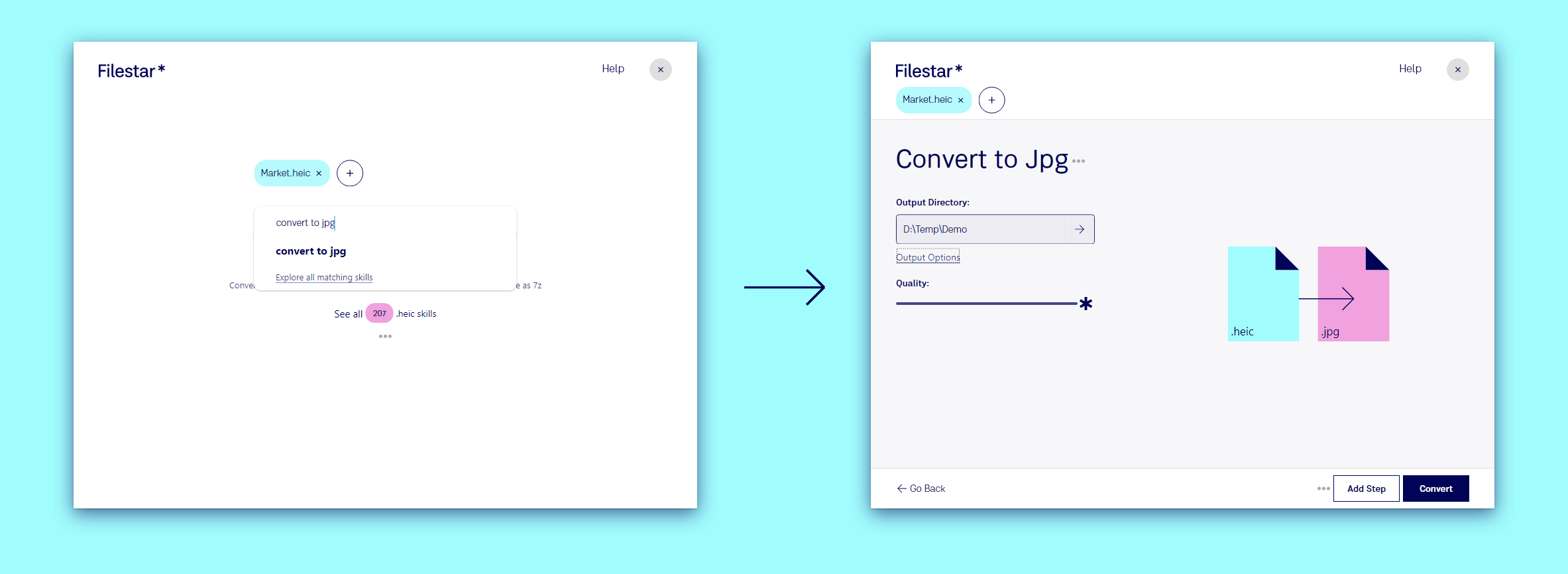
Convert a file in three steps
- Drop the file on Filestar, or click + to pick it. Filestar reads what the file actually is, not just its extension, and shows how many skills it has for it: 207 for a HEIC photo.
- Type what you want, for example
convert to jpg, and pick the suggestion. The most common conversions for your file are listed under the box, so often it is a single click. - Click Convert. The new file is saved next to the original, unless you choose another Output Directory.
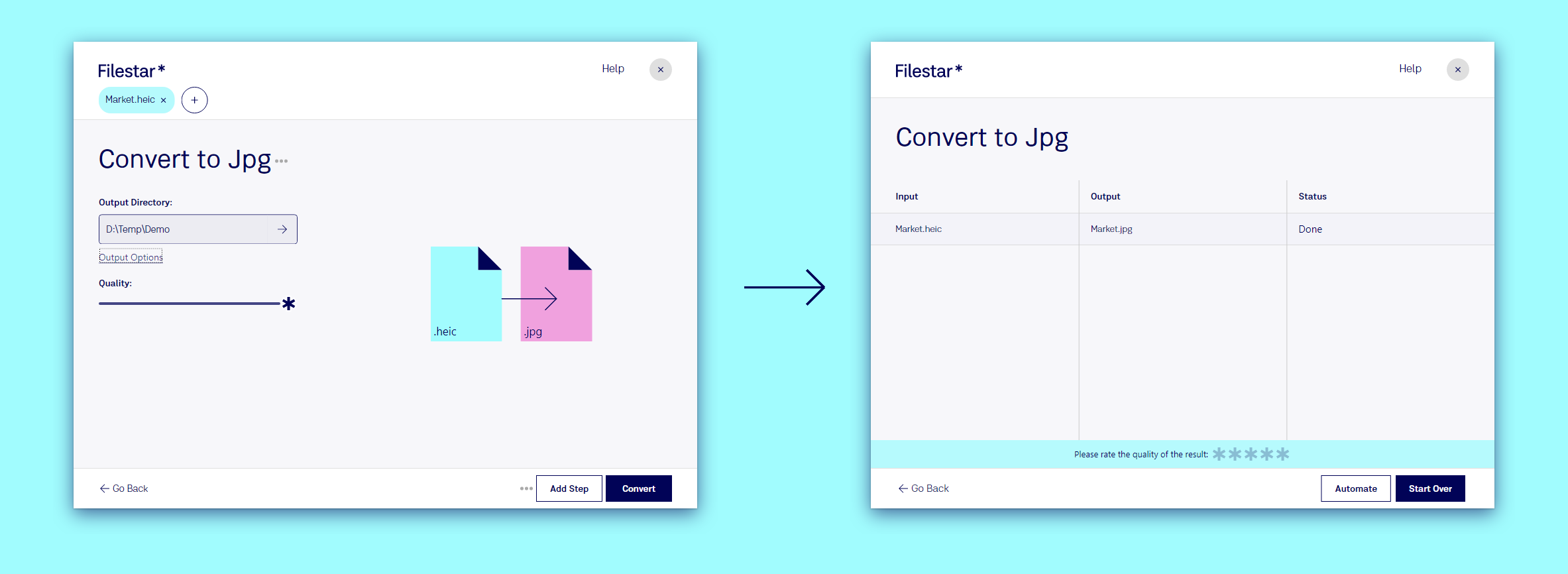
Some conversions have settings, like Quality for a JPG. The defaults are chosen for you, so you only touch them when you want to.
Many files at once
Drop a whole folder's worth of files and convert them in one go. Filestar runs the same conversion on each, and the result page lists every file with its status, so you can see at a glance that all of them made it.
Your files stay with you
Conversions run on your own computer. The few skills that need the cloud show a cloud icon, and Filestar asks before it sends anything. That makes Filestar safe for contracts, medical records and anything else that should not leave the building. See Privacy and Security.
Go further
- Name the new files your way with a path template, for example by date taken: Bulk Renaming.
- Chain steps: convert, then compress, then email, as one Recipe.
- Convert without opening Filestar: put a Trigger Folder on a folder, make a Desktop Shortcut to drop files on, or a Hotkey on Windows.
Popular conversions: HEIC to JPG, DOCX to PDF, PDF to DOCX, JPG to PDF, PNG to JPG. Or browse every file type.