
Compress
The email bounces because the attachment is too big. The upload form says 2 MB maximum. Compressing makes a file smaller while keeping it looking the same, and for photos the difference is often dramatic.
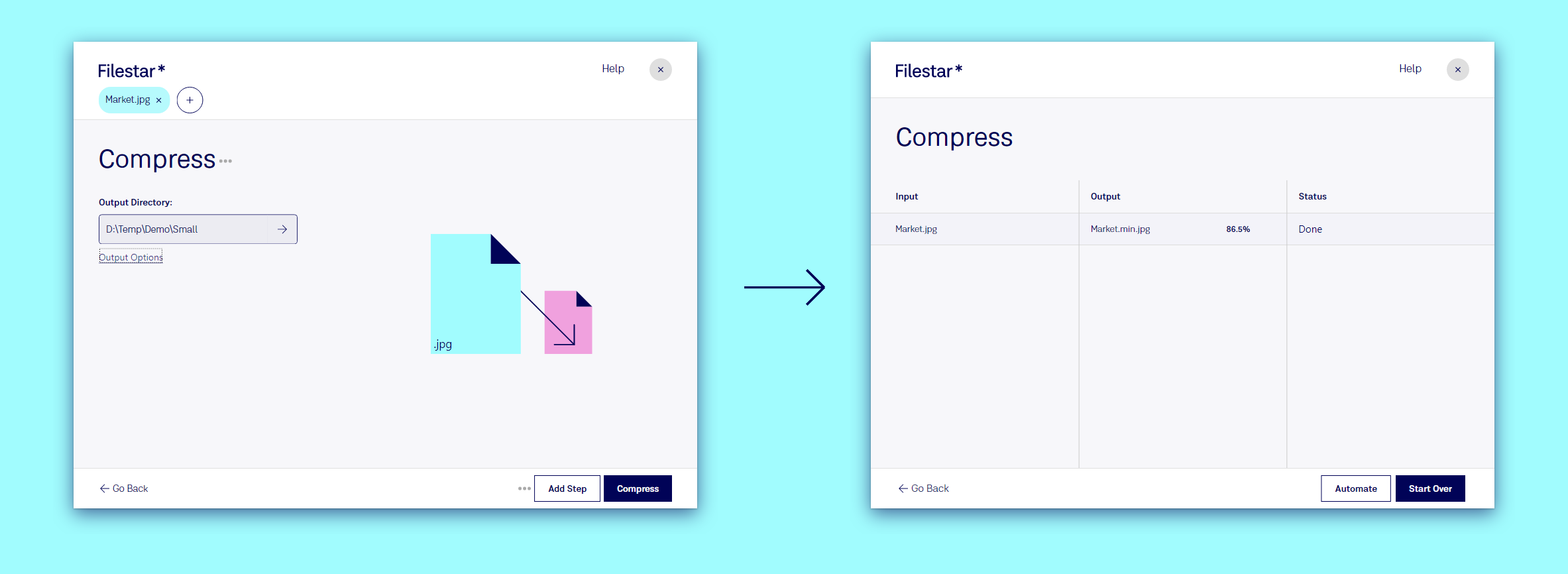
In the example above, a 1.5 MB photo came out at 204 KB: 86.5% smaller, and you would be hard pressed to tell them apart on screen.
Compress a file in three steps
- Drop the file on Filestar.
- Pick Compress. It is one of the suggestions for photos and PDFs; otherwise type
compress. - Click Compress. The result page shows how much smaller the file became. The original stays as it is: the compressed copy gets
.minin its name, likeMarket.min.jpg.
What can be compressed
- Photos and images: compress JPG, compress PNG
- PDFs, which often carry large images: compress PDF
- Office documents with pictures in them: compress DOCX
Many files at once? Drop them all: each is compressed on its own and the result page shows the saving for every one.
Go further
- Shrink, then send: add an Email step after Compress with Add Step.
- Bundle the results into one zip file to send: type
zipas the next step. - Compress everything you save to a folder with a Trigger Folder.