
Transform
Transforming is everything that changes a file without changing its format: rotate a photo, resize it for the web, put your logo in the corner, add a watermark to a PDF. Filestar shows a live preview while you adjust the settings, so you see the result before you run it.
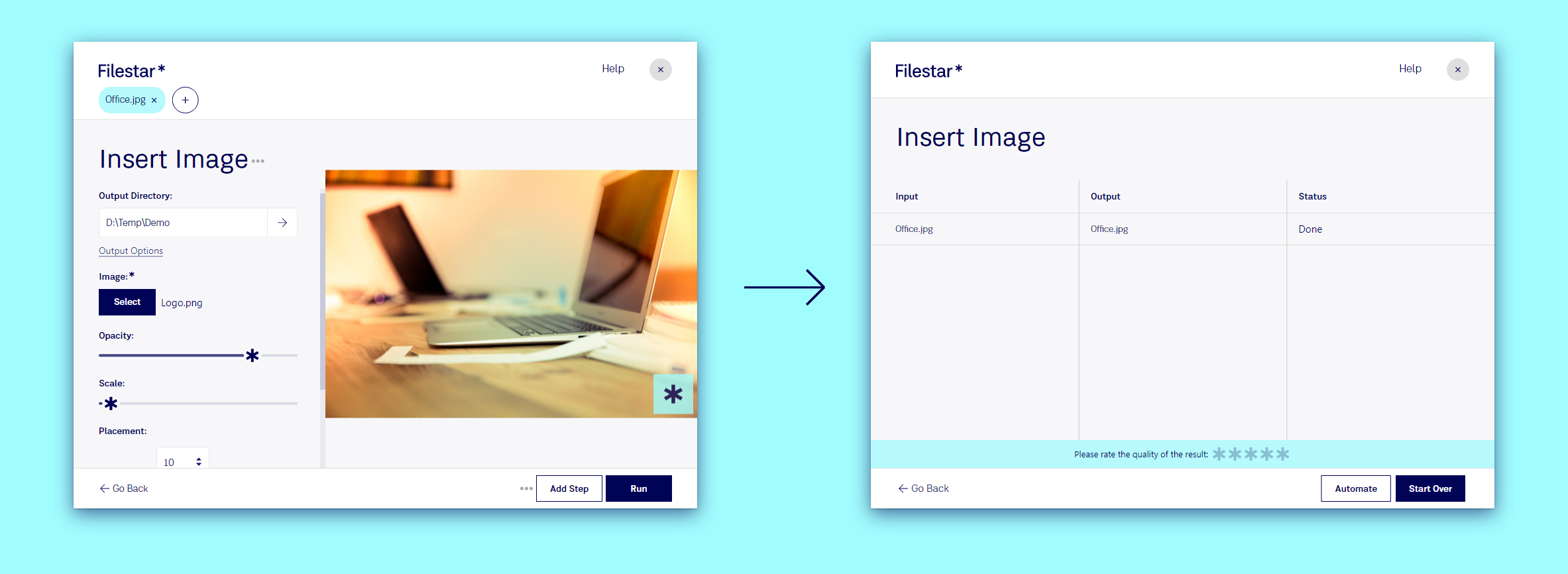
Example: put your logo on a photo
- Drop the photo on Filestar.
- Type
watermarkand pick the suggestion. This opens Insert Image. - Click Select and choose your logo.
- Adjust it in the preview. Lower the Scale to make the logo smaller, lower the Opacity to let the photo show through, and pick a corner under Placement. The margin boxes around it set the distance from the edge.
- Click Run.

Drop twenty photos instead of one and the same logo, at the same size and place, goes on all of them.
Other transformations
There are hundreds, and which ones you get depends on the file. A few that people use every day:
- Rotate: rotate a JPG, rotate a PDF
- Resize: resize a JPG, resize a PDF
- Watermark: add a watermark to a PDF, insert an image into a JPG
- Rename: give a batch of files consistent names with Bulk Renaming
To see them all, drop your file and click the number in See all … skills.
Go further
- Save your settings as a recipe so the logo always lands in the same place: Recipes.
- Watermark every photo you export to a folder with a Trigger Folder.