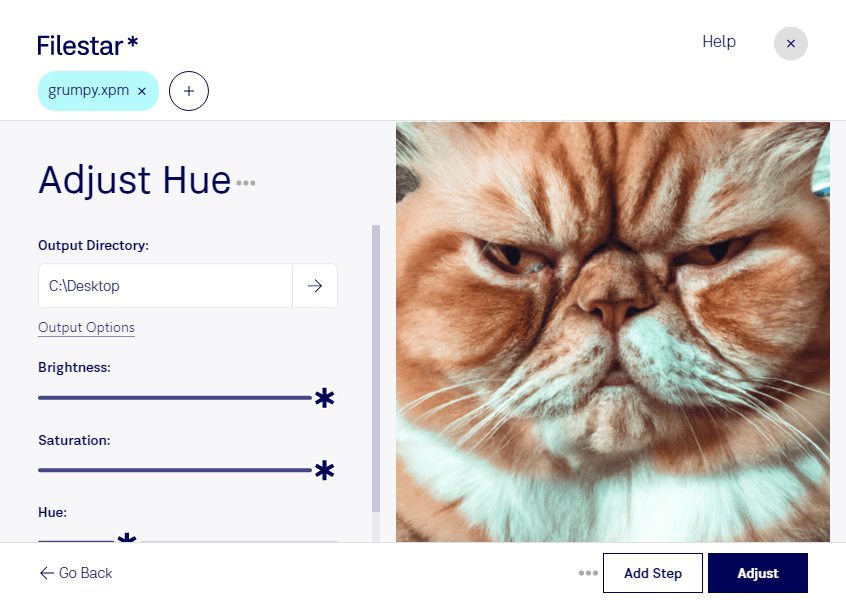
Download and install the latest version of Filestar.
Right click on one or more Xpm file(s) on your desktop and select Convert with Filestar.
Type adjust hue in the search box.
Press Adjust.
Or let an AI agent do it: filestarcli -i photo.xpm -c "adjust hue" (how).
Let your AI agent adjust XPM hue
Claude Code, Codex, Cursor and other agents can do this on your computer with Filestar. Your files stay on your machine.
Install Filestar and add it to your agents:
npm install -g filestar
filestarcli agent install
Then ask your agent:
“Use Filestar to adjust XPM hue in my Downloads folder”
Or run it yourself:
filestarcli -i photo.xpm -c "adjust hue"
Runs on your computer, so your files stay on it. Works on Windows, macOS and Linux. 50 free conversions with the npm install, no account needed.
Can my AI agent adjust XPM hue?
Yes. Install the Filestar CLI with npm install -g filestar and your agent can run filestarcli -i photo.xpm -c "adjust hue" on your computer, so your files stay on it.
The XPM (X11 Pixmap Graphic) file format is a plain text file format used to store pixmap images, which are pixel-based graphics. It is designed for use with the X Window System, commonly used in Unix and Linux environments. XPM files define images in a structured format, using ASCII text to describe each pixel's color and location within the image. This format supports both monochrome and color images and allows for the definition of custom color palettes.