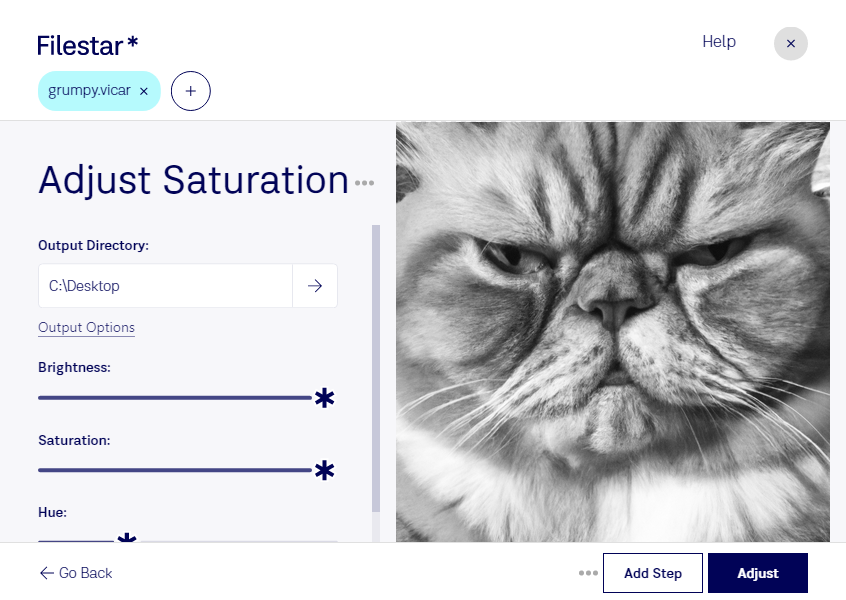
“Use Filestar to adjust VICAR saturation in my Downloads folder”
Or run it yourself:
filestarcli -i file.vicar -c "adjust saturation"
Runs on your computer, so your files stay on it. Works on Windows, macOS and Linux. 50 free conversions with the npm install, no account needed.
Can my AI agent adjust VICAR saturation?
Yes. Install the Filestar CLI with npm install -g filestar and your agent can run filestarcli -i file.vicar -c "adjust saturation" on your computer, so your files stay on it.
The VICAR (Video Image Communication And Retrieval) Image file format is a flexible, image-processing and data format system used primarily by the planetary science community. Developed by NASA's Jet Propulsion Laboratory (JPL) for storing and managing digital images from space missions, VICAR files are designed to support a wide range of image types, including scientific and engineering data from various spacecraft instruments. This format is characterized by its ability to handle multi-dimensional arrays of data.