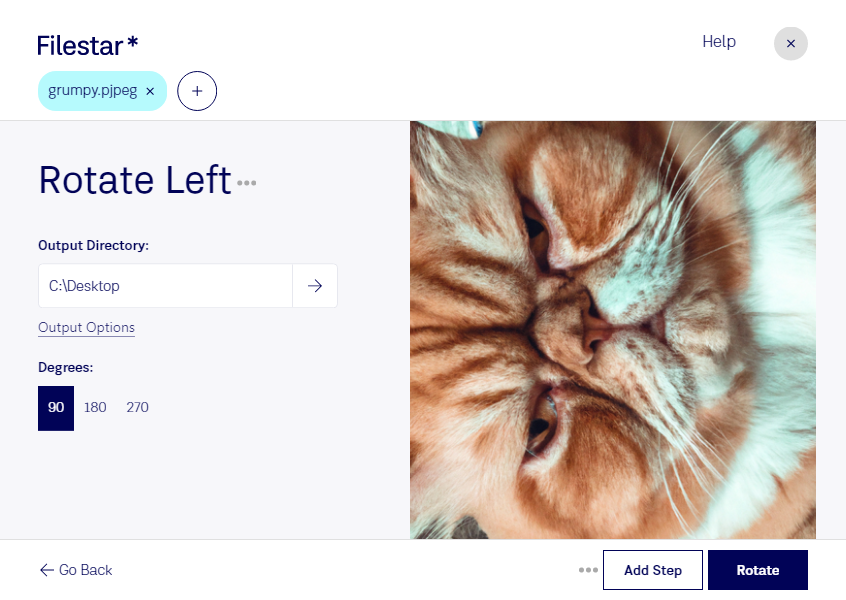
Rotate pjpeg left

  1. Download and install the latest version of Filestar.

  2. Right click on one or more Pjpeg file(s) on your desktop and select Convert with Filestar.

  3. Type rotate left in the search box.

  4. Press Rotate.

Or let an AI agent do it: filestarcli -i photo.pjpeg -c "rotate left" (how).

rotate pjpeg left

Let your AI agent rotate PJPEG left

Claude Code, Codex, Cursor and other agents can do this on your computer with Filestar. Your files stay on your machine.

Install Filestar and add it to your agents:

npm install -g filestar
filestarcli agent install

Then ask your agent:

“Use Filestar to rotate PJPEG left in my Downloads folder”

Or run it yourself:

filestarcli -i photo.pjpeg -c "rotate left"

Runs on your computer, so your files stay on it. Works on Windows, macOS and Linux. 50 free conversions with the npm install, no account needed.

Can my AI agent rotate PJPEG left?

Yes. Install the Filestar CLI with npm install -g filestar and your agent can run filestarcli -i photo.pjpeg -c "rotate left" on your computer, so your files stay on it.

Using Filestar With AI Agents · Download SKILL.md

What is .pjpeg?

Extension
.pjpeg
Format
Binary
Category
Raster Image
Developer
JPEG
Description
A PJPEG file is a bitmap image created in the Progressive JPEG format (PJPEG). It contains encoded bitmap data so that the downloaded image appears progressively from a blurry picture to the final sharp image. PJPEG files may also fill alternating horizontal lines until the full picture is revealed.
MIME Type
image/pjpeg

Rotate Pjpeg Left Today

Get started within minutes