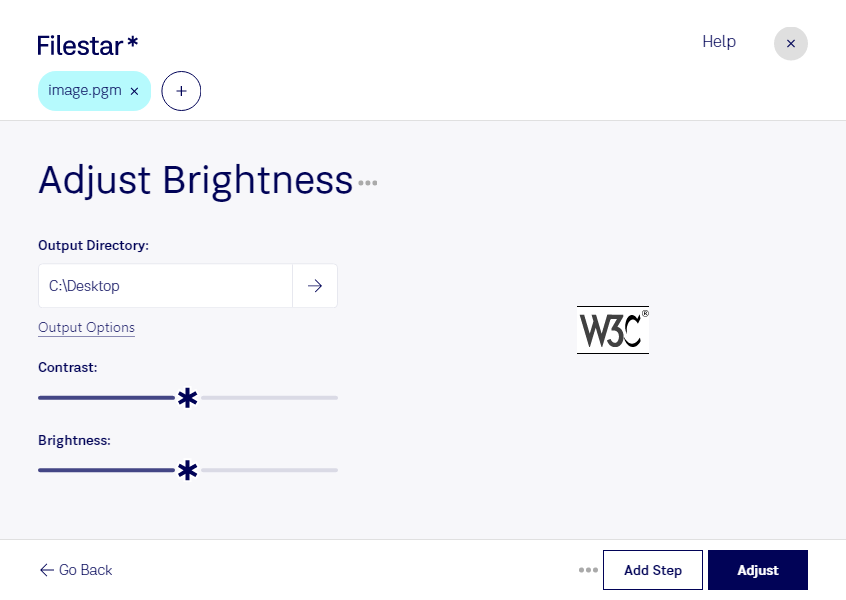
Adjust pgm brightness

  1. Download and install the latest version of Filestar.

  2. Right click on one or more Pgm file(s) on your desktop and select Convert with Filestar.

  3. Type adjust brightness in the search box.

  4. Press Adjust.

Or let an AI agent do it: filestarcli -i photo.pgm -c "adjust brightness" (how).

adjust pgm brightness

Let your AI agent adjust PGM brightness

Claude Code, Codex, Cursor and other agents can do this on your computer with Filestar. Your files stay on your machine.

Install Filestar and add it to your agents:

npm install -g filestar
filestarcli agent install

Then ask your agent:

“Use Filestar to adjust PGM brightness in my Downloads folder”

Or run it yourself:

filestarcli -i photo.pgm -c "adjust brightness"

Runs on your computer, so your files stay on it. Works on Windows, macOS and Linux. 50 free conversions with the npm install, no account needed.

Can my AI agent adjust PGM brightness?

Yes. Install the Filestar CLI with npm install -g filestar and your agent can run filestarcli -i photo.pgm -c "adjust brightness" on your computer, so your files stay on it.

Using Filestar With AI Agents · Download SKILL.md

What is .pgm?

Extension
.pgm
Format
Binary
Category
Raster Image
Developer
Jef Poskanzer
Description
A PGM file is a grayscale image file saved in the portable gray map (PGM) format and encoded with one or two bytes (8 or 16 bits) per pixel. It contains header information and a grid of numbers that represent different shades of gray from black (0) to white (up to 65,536). PGM files are typically stored in ASCII text format, but also have a binary representation.
MIME Type
image/x-portable-graymap

Adjust Pgm Brightness Today

Get started within minutes