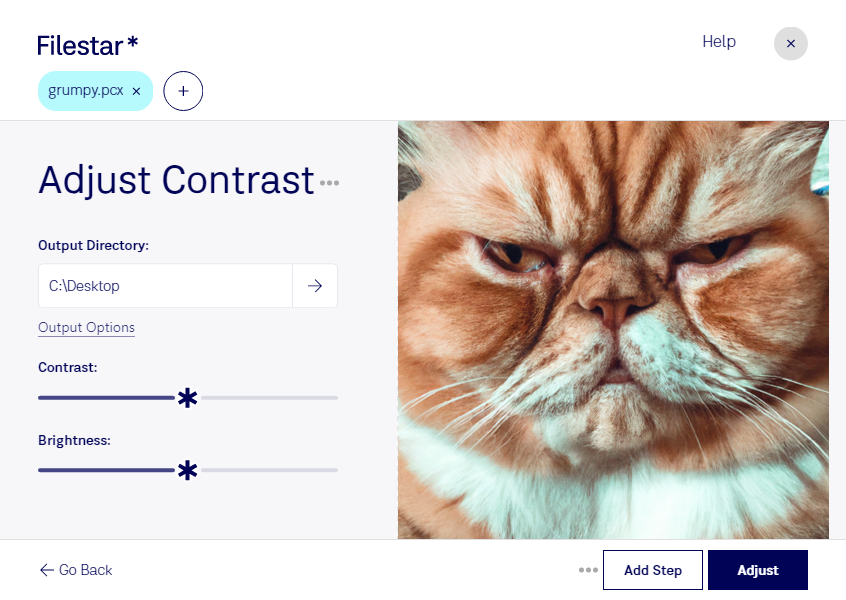
Download and install the latest version of Filestar.
Right click on one or more Pcx file(s) on your desktop and select Convert with Filestar.
Type adjust contrast in the search box.
Press Adjust.
Or let an AI agent do it: filestarcli -i photo.pcx -c "adjust contrast" (how).
Let your AI agent adjust PCX contrast
Claude Code, Codex, Cursor and other agents can do this on your computer with Filestar. Your files stay on your machine.
Install Filestar and add it to your agents:
npm install -g filestar
filestarcli agent install
Then ask your agent:
“Use Filestar to adjust PCX contrast in my Downloads folder”
Or run it yourself:
filestarcli -i photo.pcx -c "adjust contrast"
Runs on your computer, so your files stay on it. Works on Windows, macOS and Linux. 50 free conversions with the npm install, no account needed.
Can my AI agent adjust PCX contrast?
Yes. Install the Filestar CLI with npm install -g filestar and your agent can run filestarcli -i photo.pcx -c "adjust contrast" on your computer, so your files stay on it.
PCX, standing for Paintbrush Bitmap Image, is a raster image format developed by ZSoft Corporation for their PC Paintbrush graphics program. Initially released in the 1980s, PCX was one of the first widely used bitmap image formats on IBM PC compatible computers. The format supports 1-bit monochrome, 4-bit palette, 8-bit palette, and 24-bit true color images, allowing for a wide range of colors and shades.