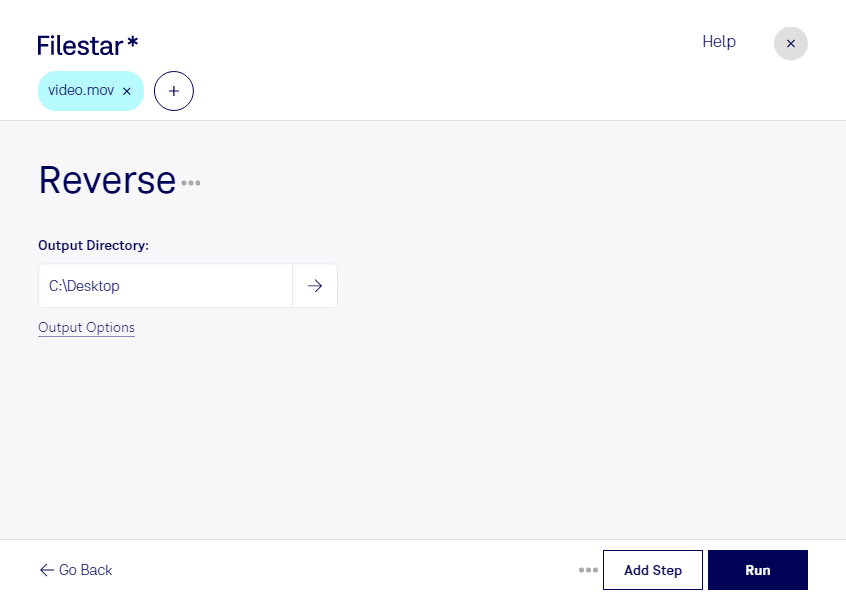
Reverse mov

  1. Download and install the latest version of Filestar.

  2. Right click on one or more Mov file(s) on your desktop and select Convert with Filestar.

  3. Type reverse in the search box.

  4. Press Run.

Or let an AI agent do it: filestarcli -i file.mov -c "reverse" (how).

reverse mov

Let your AI agent reverse MOV

Claude Code, Codex, Cursor and other agents can do this on your computer with Filestar. Your files stay on your machine.

Install Filestar and add it to your agents:

npm install -g filestar
filestarcli agent install

Then ask your agent:

“Use Filestar to reverse MOV in my Downloads folder”

Or run it yourself:

filestarcli -i file.mov -c "reverse"

Runs on your computer, so your files stay on it. Works on Windows, macOS and Linux. 50 free conversions with the npm install, no account needed.

Can my AI agent reverse MOV?

Yes. Install the Filestar CLI with npm install -g filestar and your agent can run filestarcli -i file.mov -c "reverse" on your computer, so your files stay on it.

Using Filestar With AI Agents · Download SKILL.md

What is .mov?

Extension
.mov
Format
Binary
Category
Video
Developer
Apple
Description
A MOV file is a common multimedia container file format developed by Apple and compatible with both Macintosh and Windows platforms. It may contain multiple tracks that store different types of media data and is often used for saving movies and other video files. MOV files commonly use the MPEG-4 codec for compression.
MIME Type
video/quicktime

Reverse Mov Today

Get started within minutes

Are you a professional video editor looking for an easy way to edit your Apple QuickTime movies in reverse? Look no further than our reverse MOV converter. With Filestar, you can quickly and easily convert your video files to play in reverse, making your editing process faster and more efficient.

Our software is perfect for professionals who need to perform bulk/batch operations on their video files. With just a few clicks, you can convert multiple files at once, saving you time and effort. And because Filestar runs on both Windows and OSX, you can use it no matter what operating system you prefer.

One of the best things about using our reverse MOV converter is that you can process your files locally on your computer, rather than in the cloud. This means that your files are more secure, and you don't have to worry about them being accessed by unauthorized users. Plus, processing your files locally is often faster than using an online converter, so you can get your work done more quickly.

So if you're a professional video editor looking for an easy way to edit your Apple QuickTime movies in reverse, try our reverse MOV converter today. With our bulk/batch conversion capabilities and local processing, you'll be able to work more efficiently and securely than ever before. Contact us to learn more or to get started today.