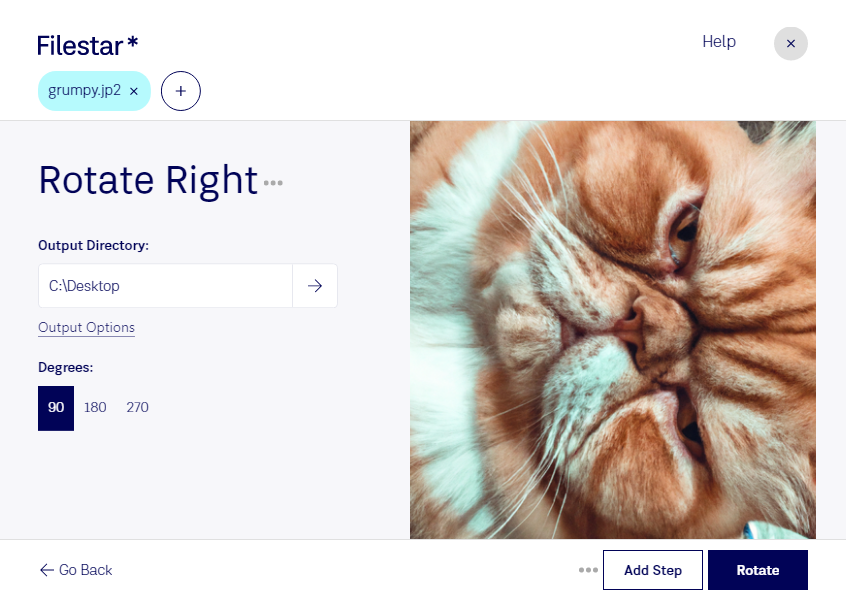
Rotate jp2 right

  1. Download and install the latest version of Filestar.

  2. Right click on one or more Jp2 file(s) on your desktop and select Convert with Filestar.

  3. Type rotate right in the search box.

  4. Press Rotate.

Or let an AI agent do it: filestarcli -i photo.jp2 -c "rotate right" (how).

rotate jp2 right

Let your AI agent rotate JP2 right

Claude Code, Codex, Cursor and other agents can do this on your computer with Filestar. Your files stay on your machine.

Install Filestar and add it to your agents:

npm install -g filestar
filestarcli agent install

Then ask your agent:

“Use Filestar to rotate JP2 right in my Downloads folder”

Or run it yourself:

filestarcli -i photo.jp2 -c "rotate right"

Runs on your computer, so your files stay on it. Works on Windows, macOS and Linux. 50 free conversions with the npm install, no account needed.

Can my AI agent rotate JP2 right?

Yes. Install the Filestar CLI with npm install -g filestar and your agent can run filestarcli -i photo.jp2 -c "rotate right" on your computer, so your files stay on it.

Using Filestar With AI Agents · Download SKILL.md

What is .jp2?

Extension
.jp2
Format
Binary
Category
Raster Image
Developer
Joint Photographic Experts Group
Description
A JP2 file is a compressed bitmap image created using JPEG 2000 Core Coding. It incorporates a wavelet compression algorithm instead of Digital Cosine Transform (DCT) compression, which is used by standard JPEG images. JP2 files can be stored using lossy and lossless compression.
MIME Type
image/jp2

Rotate Jp2 Right Today

Get started within minutes