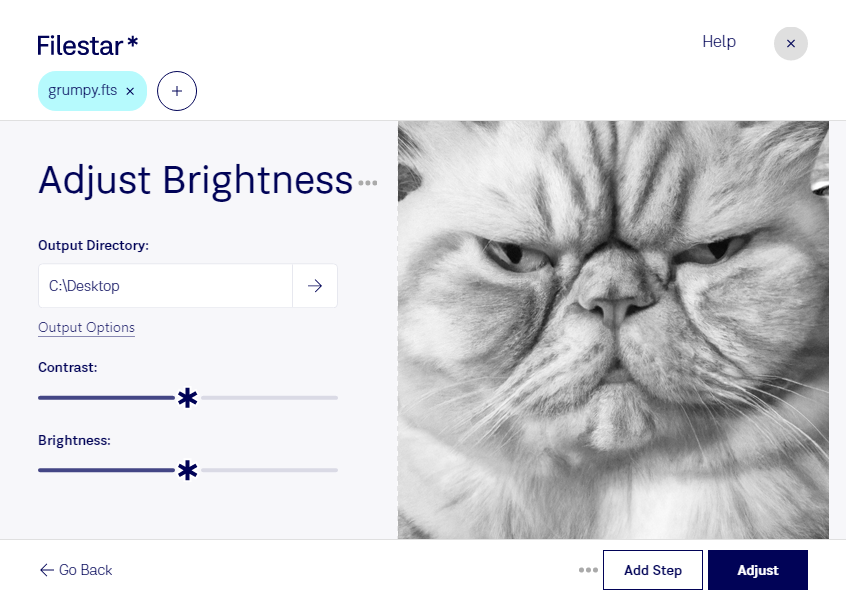
Download and install the latest version of Filestar.
Right click on one or more Fts file(s) on your desktop and select Convert with Filestar.
Type adjust brightness in the search box.
Press Adjust.
Or let an AI agent do it: filestarcli -i photo.fts -c "adjust brightness" (how).
Let your AI agent adjust FTS brightness
Claude Code, Codex, Cursor and other agents can do this on your computer with Filestar. Your files stay on your machine.
Install Filestar and add it to your agents:
npm install -g filestar
filestarcli agent install
Then ask your agent:
“Use Filestar to adjust FTS brightness in my Downloads folder”
Or run it yourself:
filestarcli -i photo.fts -c "adjust brightness"
Runs on your computer, so your files stay on it. Works on Windows, macOS and Linux. 50 free conversions with the npm install, no account needed.
Can my AI agent adjust FTS brightness?
Yes. Install the Filestar CLI with npm install -g filestar and your agent can run filestarcli -i photo.fts -c "adjust brightness" on your computer, so your files stay on it.
FTS file format is used to edit, store and transmit images with metadata (data with spatial and photometric calibrations) for scientific purposes. Most times it stores the data without the actual associated images.