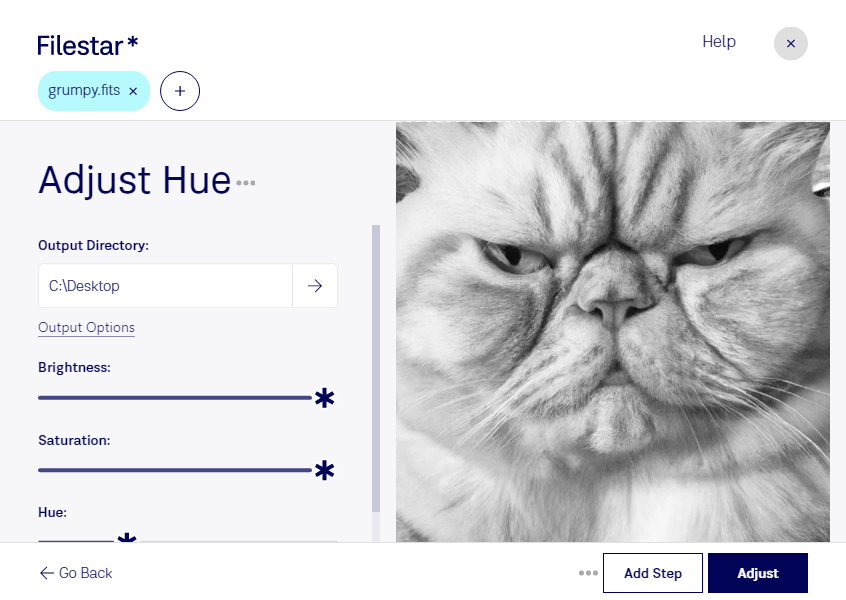
“Use Filestar to adjust FITS hue in my Downloads folder”
Or run it yourself:
filestarcli -i photo.fits -c "adjust hue"
Runs on your computer, so your files stay on it. Works on Windows, macOS and Linux. 50 free conversions with the npm install, no account needed.
Can my AI agent adjust FITS hue?
Yes. Install the Filestar CLI with npm install -g filestar and your agent can run filestarcli -i photo.fits -c "adjust hue" on your computer, so your files stay on it.
The Flexible Image Transport System (FITS) file format is a digital file format used primarily in astronomy for storing, transmitting, and analyzing scientific images and data. Developed in the late 1970s, FITS was designed to provide a standard for the interchange of astronomical data, facilitating the sharing and analysis of data among astronomers and researchers worldwide.