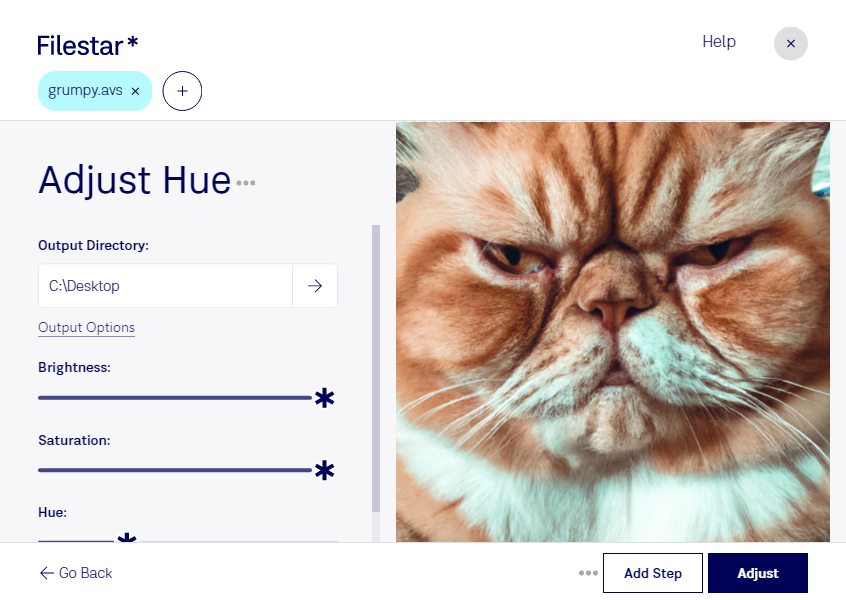
Adjust avs hue

  1. Download and install the latest version of Filestar.

  2. Right click on one or more Avs file(s) on your desktop and select Convert with Filestar.

  3. Type adjust hue in the search box.

  4. Press Adjust.

Or let an AI agent do it: filestarcli -i photo.avs -c "adjust hue" (how).

adjust avs hue

Let your AI agent adjust AVS hue

Claude Code, Codex, Cursor and other agents can do this on your computer with Filestar. Your files stay on your machine.

Install Filestar and add it to your agents:

npm install -g filestar
filestarcli agent install

Then ask your agent:

“Use Filestar to adjust AVS hue in my Downloads folder”

Or run it yourself:

filestarcli -i photo.avs -c "adjust hue"

Runs on your computer, so your files stay on it. Works on Windows, macOS and Linux. 50 free conversions with the npm install, no account needed.

Can my AI agent adjust AVS hue?

Yes. Install the Filestar CLI with npm install -g filestar and your agent can run filestarcli -i photo.avs -c "adjust hue" on your computer, so your files stay on it.

Using Filestar With AI Agents · Download SKILL.md

What is .avs?

Extension
.avs
Format
Binary
Category
Raster Image
Developer
Stardent
Description
AVS (Application Visualization System) file is a graphics file for Stardent AVS X image visualization. It is currently available on several platforms but it was originally developed only by the Stardent computer.
MIME Type
application/octet-stream

Adjust Avs Hue Today

Get started within minutes