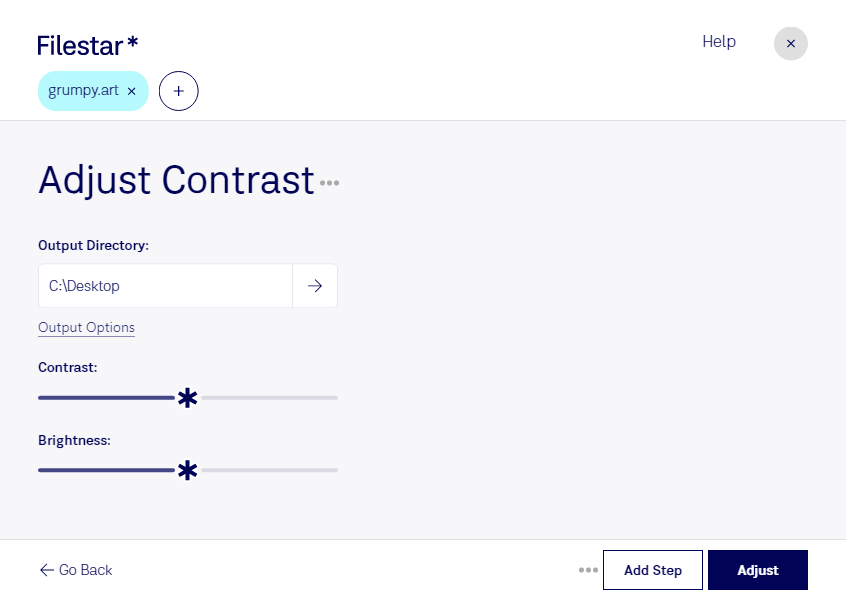
“Use Filestar to adjust ART contrast in my Downloads folder”
Or run it yourself:
filestarcli -i photo.art -c "adjust contrast"
Runs on your computer, so your files stay on it. Works on Windows, macOS and Linux. 50 free conversions with the npm install, no account needed.
Can my AI agent adjust ART contrast?
Yes. Install the Filestar CLI with npm install -g filestar and your agent can run filestarcli -i photo.art -c "adjust contrast" on your computer, so your files stay on it.
PFS Art Publisher Image (ART) is a raster graphics file format used for storing digital images. It was developed by Progressive Networks for use in their Progressive FreeStyle Art Publisher software. ART files are compressed using the run-length encoding (RLE) algorithm, which allows them to store large images in a relatively small file size. The ART format supports up to 24-bit color and is often used for storing digital photos and other images.