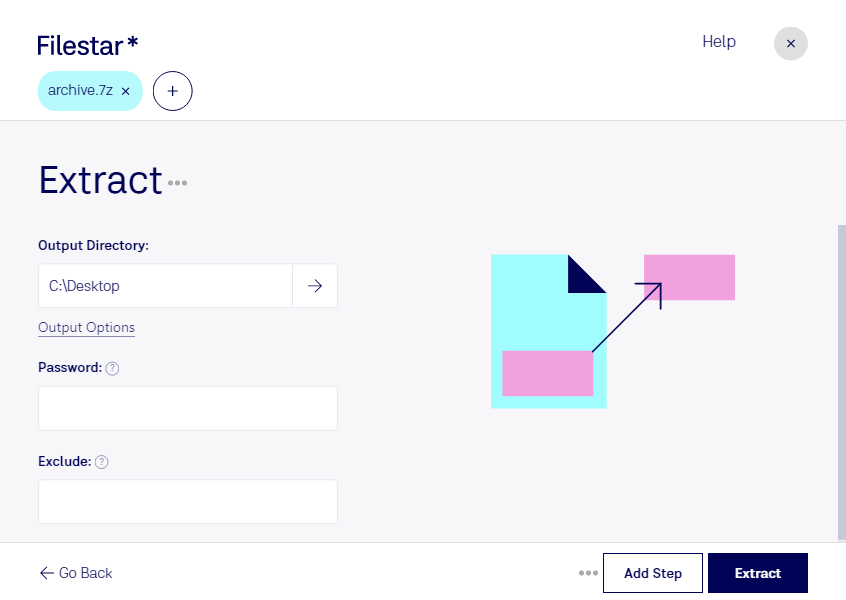
Lade die neueste Version von Filestar herunter und installiere sie.
Klicke auf deinem Desktop mit der rechten Maustaste auf eine oder mehrere 7z-Dateien und wähle Convert with Filestar.
Gib extract in das Suchfeld ein.
Klicke auf Extract.
Or let an AI agent do it: filestarcli -i file.7z -c "extract" (how).
Let your AI agent 7Z entpacken
Claude Code, Codex, Cursor and other agents can do this on your computer with Filestar. Your files stay on your machine.
Install Filestar and add it to your agents:
npm install -g filestar
filestarcli agent install
Then ask your agent:
“Use Filestar to 7Z entpacken in my Downloads folder”
Or run it yourself:
filestarcli -i file.7z -c "extract"
Runs on your computer, so your files stay on it. Works on Windows, macOS and Linux. 50 free conversions with the npm install, no account needed.
Can my AI agent 7Z entpacken?
Yes. Install the Filestar CLI with npm install -g filestar and your agent can run filestarcli -i file.7z -c "extract" on your computer, so your files stay on it.
Eine 7Z-Datei ist ein komprimiertes Archiv, das den Open-Source-Kompressionsalgorithmus LZMA verwendet, um die Dateigröße zu reduzieren. Dieser Dateityp wird häufig verwendet, um mehrere Ordner und Dateien in einem einzigen komprimierten Paket zu speichern. 7Z-Dateien können außerdem eine starke AES-256-Verschlüsselung für zusätzliche Sicherheit enthalten. Sie werden üblicherweise mit dem von Igor Pavlov entwickelten Programm 7-Zip erstellt.