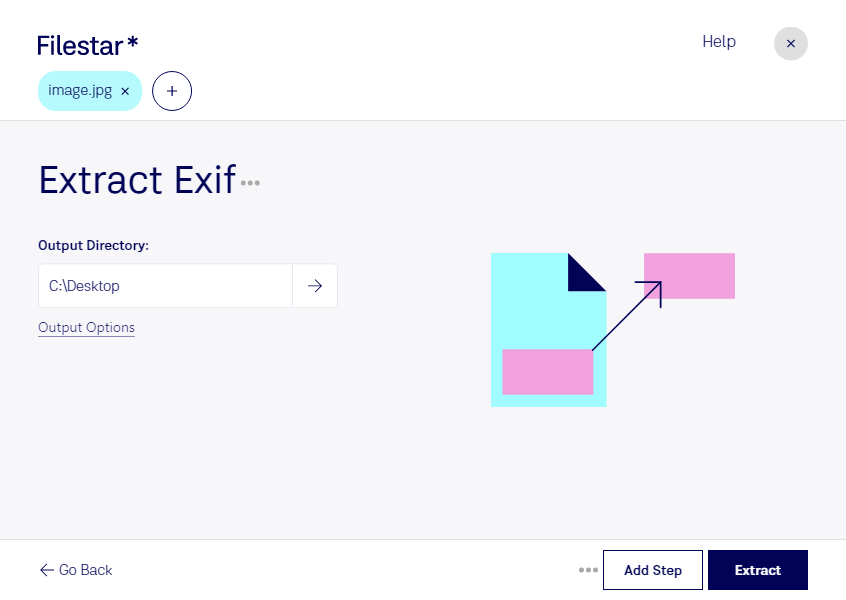
Extract jpg exif

  1. Download and install the latest version of Filestar.

  2. Right click on one or more Jpg file(s) on your desktop and select Convert with Filestar.

  3. Type extract exif in the search box.

  4. Press Extract.

Or let an AI agent do it: filestarcli -i photo.jpg -c "extract exif" (how).

extract jpg exif

Let your AI agent extract JPG exif

Claude Code, Codex, Cursor and other agents can do this on your computer with Filestar. Your files stay on your machine.

Install Filestar and add it to your agents:

npm install -g filestar
filestarcli agent install

Then ask your agent:

“Use Filestar to extract JPG exif in my Downloads folder”

Or run it yourself:

filestarcli -i photo.jpg -c "extract exif"

Runs on your computer, so your files stay on it. Works on Windows, macOS and Linux. 50 free conversions with the npm install, no account needed.

Can my AI agent extract JPG exif?

Yes. Install the Filestar CLI with npm install -g filestar and your agent can run filestarcli -i photo.jpg -c "extract exif" on your computer, so your files stay on it.

Using Filestar With AI Agents · Download SKILL.md

What is .jpg?

Extension
.jpg
Format
Binary
Category
Raster Image
Developer
Joint Photographic Experts Group
Description
A JPG file is an image saved in a compressed image format standardized by the Joint Photographic Experts Group (JPEG). It is commonly used for storing digital photos and used by most digital cameras to save images. JPG files are among the most common image files along with .PNG, .TIF, and .GIF.
MIME Type
image/jpeg

Extract Jpg Exif Today

Get started within minutes

Are you a professional in photography, graphic design, or any other industry that involves working with image files? Then you know how important it is to have a tool that can extract JPG EXIF data quickly and efficiently. With Filestar, you can do just that and more.

Our software allows for bulk/batch conversion/operations, meaning you can process multiple files at once, saving you time and effort. And the best part? You can do it all locally on your computer, without the need for an internet connection.

Filestar runs on both Windows and OSX, making it accessible to a wide range of users. Whether you're working on a PC or a Mac, you can rely on Filestar to get the job done.

But why is converting/processing locally on your computer more safe than in the cloud? For starters, you don't have to worry about your data being intercepted or stolen during the transfer process. And with Filestar, you can be sure that your files are processed securely and efficiently, without the need for an internet connection.

So, whether you need to extract JPG EXIF data for a photography project or convert and process raster image files for graphic design work, Filestar has got you covered. Try it out today and see for yourself why it's the go-to tool for professionals in a variety of industries.