Adjust gif brightness

  1. Download and install the latest version of Filestar.

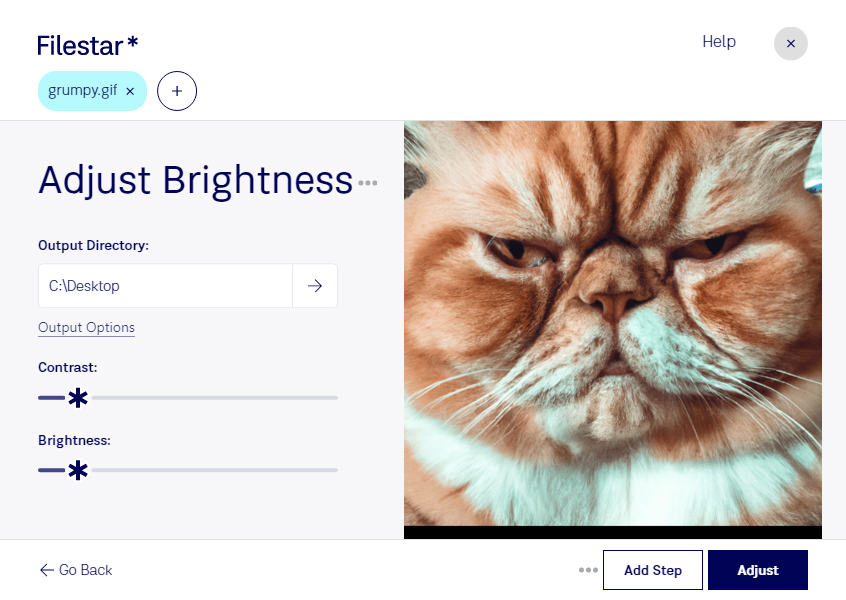
  2. Right click on one or more Gif file(s) on your desktop and select Convert with Filestar.

  3. Type adjust brightness in the search box.

  4. Press Adjust.

Or let an AI agent do it: filestarcli -i photo.gif -c "adjust brightness" (how).

adjust gif brightness

Let your AI agent adjust GIF brightness

Claude Code, Codex, Cursor and other agents can do this on your computer with Filestar. Your files stay on your machine.

Install Filestar and add it to your agents:

npm install -g filestar
filestarcli agent install

Then ask your agent:

“Use Filestar to adjust GIF brightness in my Downloads folder”

Or run it yourself:

filestarcli -i photo.gif -c "adjust brightness"

Runs on your computer, so your files stay on it. Works on Windows, macOS and Linux. 50 free conversions with the npm install, no account needed.

Can my AI agent adjust GIF brightness?

Yes. Install the Filestar CLI with npm install -g filestar and your agent can run filestarcli -i photo.gif -c "adjust brightness" on your computer, so your files stay on it.

Using Filestar With AI Agents · Download SKILL.md

What is .gif?

Extension
.gif
Format
Binary
Category
Raster Image
Developer
CompuServe
Description
A GIF file is an image file often used for web graphics. It may contain up to 256 indexed colors with a color palette that may be a predefined set of colors or may be adapted to the colors in the image. GIF files are saved in a lossless format, meaning the clarity of the image is not compromised with GIF compression.
MIME Type
image/gif

Adjust Gif Brightness Today

Get started within minutes

Are you a professional who needs to adjust the brightness of your gif files? Look no further than Filestar. Our software allows for local and safe conversion and processing of your gif files on both Windows and OSX.

With Filestar, you can easily adjust the brightness of your gif files in bulk, saving you valuable time and effort. Our software also allows for a variety of other batch operations, making it a versatile tool for any professional.

Whether you're a graphic designer, marketer, or content creator, adjusting the brightness of your gif files can be a crucial step in enhancing their visual impact. With Filestar, you can ensure that your files are optimized for their intended use.

One of the key advantages of using Filestar is that all conversions and processing are done locally on your computer. This means that your files are not being sent to the cloud, ensuring the safety and security of your data.

Say goodbye to the hassle of online converters and trust in the reliability and security of Filestar's software. Try it out today and see the difference for yourself.